Choosing a self-service kiosk looks simpler than it is. The product photos all show a touchscreen on a stand, the spec sheets all promise 24/7 operation, and the price quotes arrive as single numbers. Then the kiosks arrive — and the differences that actually mattered surface one by one: the screen that washes out under the storefront glass, the printer the software cannot drive, the payment terminal that does not fit the bay, the frozen unit nobody can reboot remotely. Every one of those problems was a specification decision made six months earlier.
This guide structures the decision properly. Below are ten factors B2B buyers should compare when choosing self-service kiosk hardware — grouped the way the project actually unfolds, from use case to supplier — with the specific questions to put to vendors at each step. It is written for retail and hospitality operators sourcing kiosk hardware for customer engagement. Since the kiosk is built around a commercial touch display, our companion article on factors to check when choosing touch screen monitors for business covers the display-specific details in more depth.
Key Takeaways
- Define the complete transaction before comparing hardware: every screen, every peripheral action, and the payment flow decide most of the specification for you.
- Match form factor to location, not ambition — floor-standing for anchor positions, countertop for service points, wall-mounted where floor space is off-limits.
- Let your software choose the operating system: Android for app- and web-based kiosk applications, Windows for Windows-only POS suites and printer-heavy web POS.
- Unattended operation is a software spec as much as a hardware one — insist on kiosk-mode lockdown, hardware watchdog auto-recovery, and a workable update path.
- Evaluate the supplier as hard as the unit: factory testing (24-hour burn-in), certifications, customization tiers, transparent pricing, and the RMA process decide year-two experience.
Factors 1–3: The Deployment Defines the Hardware
Factor 1 — Use case and transaction definition. Start by scripting the complete customer journey on paper: entry (how the session starts), selection (menu, form, lookup), transaction (print, scan, pay), and exit (receipt, ticket, confirmation). The script converts directly into a hardware requirement list — a journey that ends in a printed queue ticket needs a printer bay; one that ends in card payment needs a payment terminal mount and wiring; one that includes loyalty lookup needs a QR scanner or NFC reader. Teams that skip this step buy screens first and discover peripherals later.
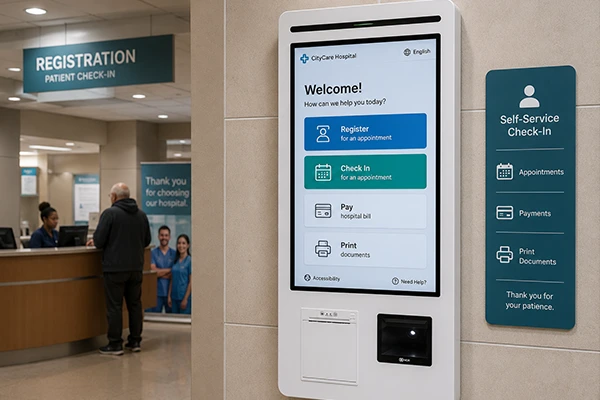
Factor 2 — Form factor and placement. Where the kiosk physically stands decides what you can buy. Anchor positions — store entrances, restaurant foyers, hospital lobbies — take floor-standing kiosks in the 21.5 to 32 inch class, like the PR2201/PR2701/PR3201 floor-standing series. Service counters take desktop formats in the 15.6 to 23.8 inch range; corridors and entry walls take wall-mounted units such as the PR2203 21.5″ wall-mounted kiosk. Measure the position — footprint, mounting surface, cable routes, power access — before falling for a diagonal.
Factor 3 — Screen size, readability and accessibility. Size follows interaction distance and content density: a walk-up ordering session with photos and modifiers is comfortable at 21.5 inches, while a check-in at arm’s length works at 15.6. Two requirements are non-negotiable in public deployments. First, readability at the actual standing distance under actual lighting — a panel that demos well in a showroom can wash out under skylights, which is why high-brightness (1000+ nits) options and anti-glare glass exist. Second, accessibility: mounting height ranges should serve wheelchair users, and interface text should stay readable at the farthest point of use. For the underlying display considerations — panel grades, touch technologies, viewing angles — our guide to capacitive vs. resistive touch screens and the screen-focused factors article are required reading.
Factors 4–6: Platform, Peripherals and Payment
Factor 4 — Panel and touch quality. Specify A-grade IPS panels with capacitive multi-touch (10-point is the commercial standard) and dead-pixel/uniformity inspection at the factory. This is the layer that separates fleets that look sharp for years from fleets that yellow, blotch, or develop dead touch zones. If the position faces windows or outdoor light, specify the high-brightness and AG options at ordering — they are factory options, not field upgrades.
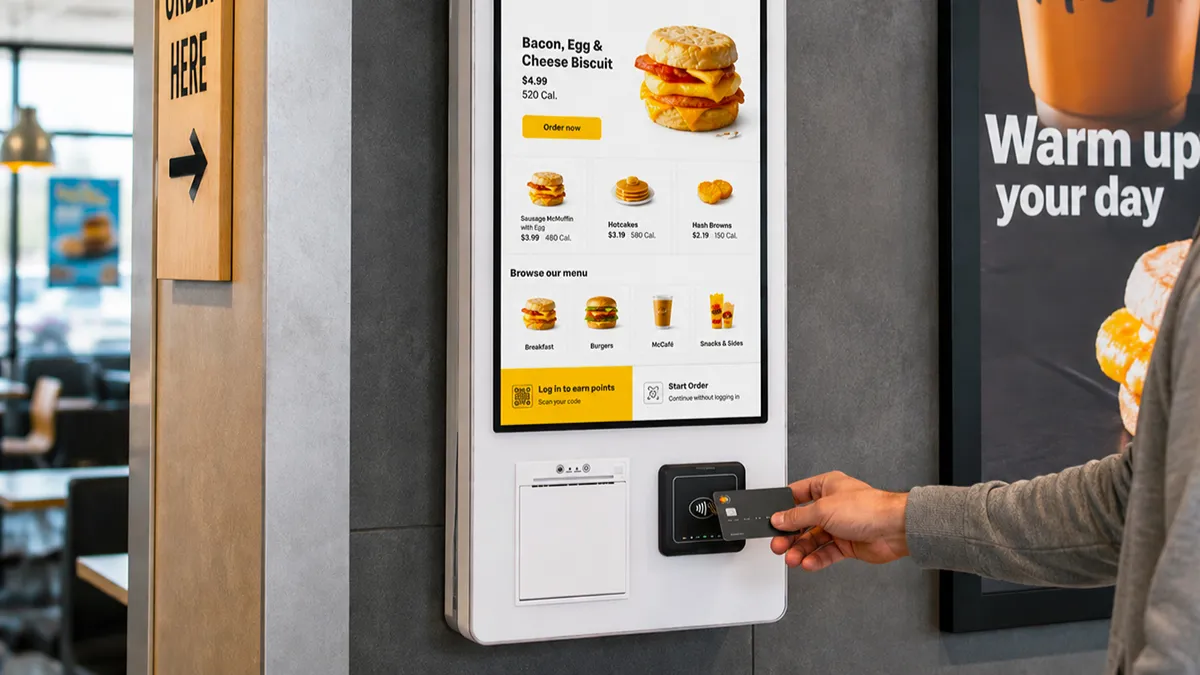
Factor 5 — Operating system and computing platform. The OS decision should be made by your software team, not the hardware vendor. Android all-in-one platforms are the self-service default: cost-efficient, native kiosk-mode lockdown, and straightforward for app- or web-based kiosk software. Windows platforms — fanless boards for light duty, Core i-series for demanding POS software — are the right answer for Windows-only suites and for web POS systems that must drive receipt printers, a well-known Android limitation in restaurant environments. Linux fits teams building their own embedded stack. The strategic point: choose a kiosk family available in all three, so a future software change does not force a hardware change.
Factor 6 — Peripherals and payment integration. This is where kiosk projects quietly succeed or loudly fail. List every peripheral the transaction script demands — receipt or ticket printer, QR/barcode scanner, NFC/RFID reader — and confirm each is a factory-integrated option on the platform, with the physical bay, wiring, and driver support included. For payments, the industry pattern is a kiosk ready to accept standard payment terminals: a secure bay, power, and a path for the payment device’s connectivity, so you can certify and swap payment hardware independently of the kiosk. Ask vendors for reference deployments running your exact peripheral set. The desktop PR1504/PR2204/PR2404 series with integrated printer and scanner shows what factory-integrated peripherals look like on a spec sheet.
Factors 7–8: Connectivity and Unattended Operation
Factor 7 — Connectivity and power. Kiosks are network endpoints, so plan the connection like one: dual-band Wi-Fi and Ethernet as standard, 4G/5G LTE as the fallback or primary for pop-up locations, event sites, and older buildings where cabling is impractical. Ask about antenna placement — a metal kiosk enclosure is a poor place for an antenna unless the design accounts for it. On the power side, floor-standing and countertop kiosks run conventional AC supply; confirm cable routing is concealed (a safety and aesthetics requirement in public space) and that the unit supports power-on-auto-start so it recovers after a site power cut without a staff visit.
Factor 8 — Software hardening for unattended duty. Three capabilities define whether the fleet survives contact with the public. Kiosk mode: the application runs full-screen from boot with no exit path — confirm it can be configured at the factory so units arrive locked down. Hardware watchdog: automatic force-restart when the OS or application hangs, on Levinko platforms within roughly 50 seconds — the difference between a 3 a.m. blip and a morning of dead screens. Update path: a workable route for application and firmware updates across the fleet, whether USB offline updates, network-based delivery, or PC tools. Demos of all three should be part of any serious evaluation.
Factors 9–10: Build Quality and the Supplier Behind It
Factor 9 — Build quality for 24/7 public duty. A kiosk is public furniture. Compare enclosures (tempered glass front, steel or alloy structure), front-panel ingress protection (IP65-rated fronts resist dust and cleaning-fluid jets), and — the item that predicts everything — factory reliability testing: SOP-driven assembly, functional testing of every interface and peripheral, and a mandatory 24-hour burn-in on every unit before shipment. Ask vendors to describe their aging-room process in detail; vague answers are answers. Wide-temperature variants exist for industrial sites and should be specified explicitly when the environment demands them.
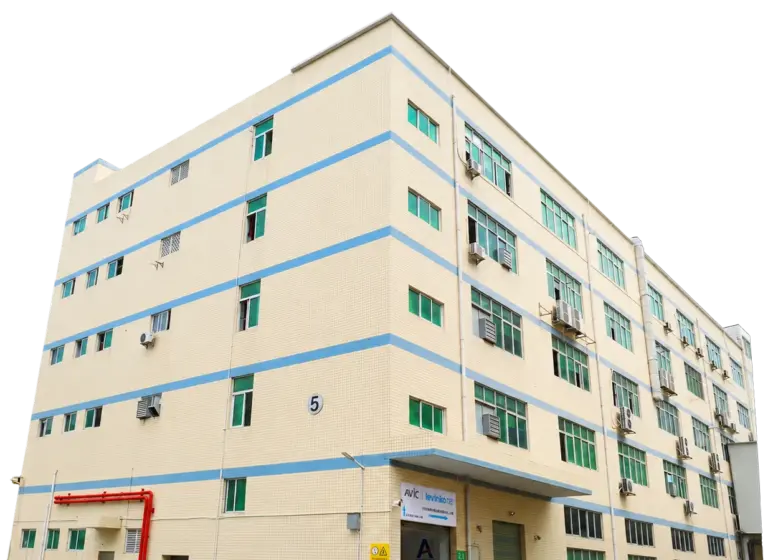
Factor 10 — Supplier capability and lifecycle support. The unit is a two-year (or longer) relationship. Evaluate: customization tiers (logo and packaging through board-level development — with honest lead times for each: days for white-label, 7–10 days to light-customization samples, 30–35 days to deep-customization samples); certifications (CE, FCC, RoHS standard; UL/UKCA cooperation for North America and UK); commercial transparency (production pricing stated at sample stage with a validity period — the antidote to low-sample-price-then-bulk-inflation); and support (one-year warranty as the professional norm, 24-hour response, remote diagnosis first, direct-shipped replacement parts with video guides, and spare-parts ratios on bulk OEM orders). Our overview of the self-service kiosk manufacturing capability at Levinko shows how each of these layers is structured in a factory-grade program.
The 10-Factor Comparison Table
| Factor | What to Check | What It Prevents |
|---|---|---|
| 1. Transaction script | Every screen and peripheral action mapped end-to-end | Missing printers, scanners, readers discovered post-order |
| 2. Form factor & placement | Floor / countertop / wall options; measured positions | Units that don’t fit the site or block circulation |
| 3. Size & accessibility | Interaction distance, content density, height range | Unreadable screens; accessibility failures |
| 4. Panel & touch quality | A-grade IPS, 10-point capacitive, brightness/AG by position | Washed-out screens, dead zones, early degradation |
| 5. OS & compute | Android / Windows / Linux matched to your software | Software that can’t run, or printers it can’t drive |
| 6. Peripherals & payment | Factory-integrated bays, drivers, payment-ready mount | Integration projects disguised as purchases |
| 7. Connectivity & power | Wi-Fi + Ethernet, LTE fallback, concealed power, auto-start | Dead units after every power cut; exposed cables |
| 8. Unattended software | Kiosk mode, hardware watchdog, update path | Frozen screens, exit-to-desktop security holes |
| 9. Build quality | Tempered glass, IP65 front, 24-hour burn-in on every unit | Month-three failures in public duty |
| 10. Supplier & lifecycle | Customization tiers, certs, locked pricing, RMA process | Price drift at bulk, unsupported fleets, orphan hardware |
From Comparison to Purchase Order
Run the ten factors as a scored comparison across two or three finalists, then validate with a pilot: order one or two units of the exact production configuration, load your real application, and run them at a real position with real customers for a few weeks. Test the failure paths deliberately — pull the network, force an application hang, cut the power — and watch what the kiosk does. A pilot that includes failures tells you more than any spec sheet. When the pilot passes, hold the specification fixed and scale on the same platform family: the kiosk product category exists precisely so fleets can mix sizes and form factors while keeping one integration, one spares list, and one support relationship. Industry-specific deployment patterns are worth studying too — see the retail and hospitality application pages for how positions, peripherals, and screen classes are combined in practice.
Frequently Asked Questions
What is the most important factor when choosing a self-service kiosk?
The complete transaction script. Mapping every screen and peripheral action — from session start to printed receipt or payment — converts directly into the hardware requirement list: screen size, computing platform, printer, scanner, payment mount. Buyers who define the transaction first choose hardware that fits; buyers who choose hardware first spend the project adapting their business to it.
What screen size should a self-service kiosk have?
Match size to interaction distance and content density. Walk-up ordering with imagery and a cart is comfortable at 21.5 inches — the commercial workhorse — while food courts and malls scale to 27 or 32 inches where the screen doubles as signage. Counter positions work at 15.6 inches, and check-in or information points can go smaller. In every case, verify readability at the real standing distance under real lighting, and specify high-brightness (1000+ nits) with anti-glare glass near windows.
How do I make sure a kiosk works with my payment terminal?
Look for a payment-ready design rather than a built-in payment device: a secure bay with power and connectivity routing that accepts standard payment terminals. This keeps payment certification independent of the kiosk — you can change payment providers without changing hardware. Confirm the physical fit and cabling with your payment provider’s terminal model before ordering, and ask the kiosk vendor for reference deployments running the same terminal.
What should a kiosk pilot test before a bulk order?
Everything, including failures. Run the exact production configuration with your real application at a real position: verify every peripheral (printer, scanner, payment), watch readability under real lighting, and deliberately break things — disconnect the network, force the application to hang, cut power — to confirm kiosk mode, watchdog auto-recovery, and auto-start behavior. A pilot that only proves the happy path proves nothing about year two.
Should all kiosks in a multi-site rollout come from one platform family?
Yes — it is the cheaper path over the deployment’s life. One platform family keeps the OS options, peripheral integration, management tools, and spare parts consistent across every form factor and size, so your software and operations teams support one fleet instead of several. Mixed-vendor fleets multiply integration work, spares lines, and vendor relationships for no benefit. Choose a family wide enough to cover floor, counter, and wall positions from the start.