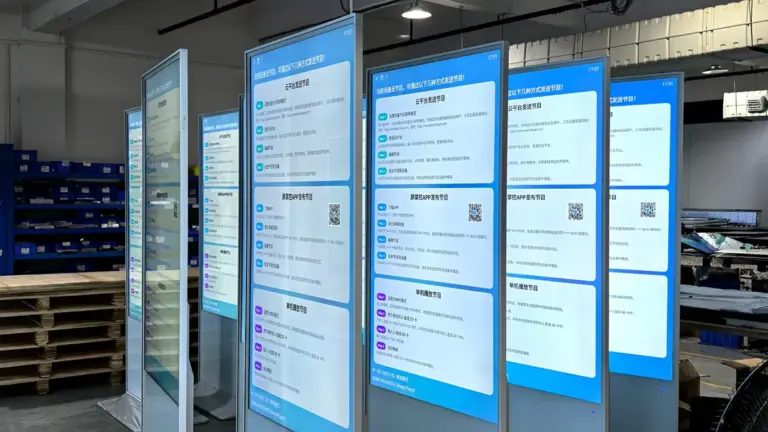
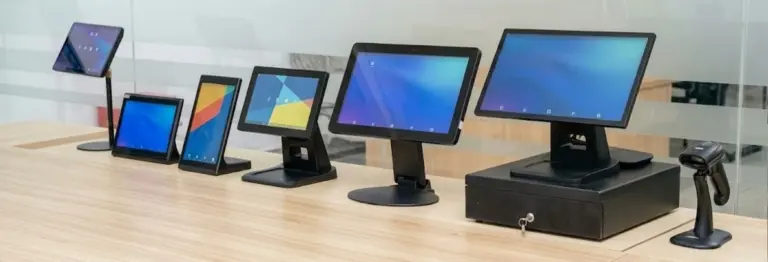
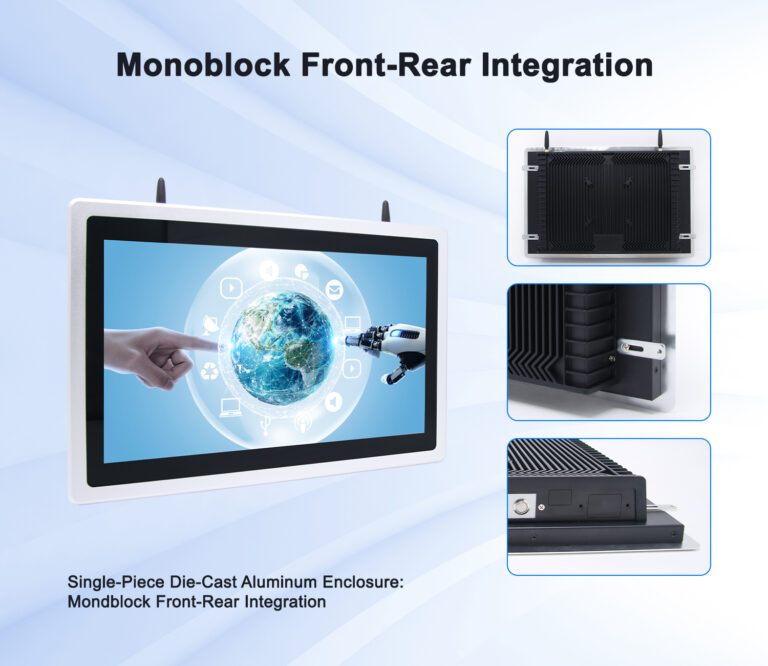
A touch screen monitor that is one size too small becomes a kiosk people lean over; one size too large becomes an expensive screen nobody can reach comfortably. In commercial projects the screen size decision cascades into everything else — the enclosure, the mount, the power budget, the software layout, and even the network design. Unlike a desk monitor that can be swapped in five minutes, a fleet of mounted displays is sized once and lives with that decision for the life of the deployment.
This guide breaks down how to choose touch screen monitor sizes for commercial applications: the variables that actually drive the decision, what each standard size does well, and how to plan a mixed-size fleet that stays serviceable. It is written for project managers and system designers who need to match display sizes to specific use cases before the first purchase order goes out. If you are new to the category overall, start with our primer on what a touch screen monitor is and how it works.
Principais conclusões
- Size follows interaction distance: under 1 meter favors 10.1 para 15.6 inches, around 1 para 1.5 meters favors 15.6 para 21.5 inches, and beyond 2 meters calls for 32 inches and up.
- Count the content, not the inches: a size that must show a full product menu, a payment panel, and a receipt preview needs 21.5 inches even at close range.
- Touch targets set a floor — plan on-screen buttons no smaller than a fingertip at the actual standing distance, and test with real users before ordering the fleet.
- Power and mounting scale with size: PoE simplifies smaller panel deployments, while 32-inch-plus displays move to conventional power and heavier mounts.
- For mixed-size fleets, stay inside one platform family so software, interfaces, and spare parts remain consistent across every screen.
Why Screen Size Is a Project Decision, Not a Preference
In consumer electronics, screen size is largely a preference — bigger is usually considered better. In commercial deployments, size is an engineering input with measurable consequences. A self-order kiosk screen determines how many menu items a guest sees without scrolling. A meeting room panel size determines whether availability status is readable from the end of the corridor. A factory HMI display size determines how much process data an operator monitors at once. Choose wrong and the symptom appears months later as slow transactions, abandoned kiosks, or support tickets.
Size also drives cost well beyond the panel itself. The price difference between a 15.6-inch and a 21.5-inch unit is only the beginning; larger screens need heavier mounts, bigger enclosures, more shipping protection, and often more power. The right process runs the sizing decision before vendor selection, so that hardware shortlists are compared against a defined requirement instead of driving it.
The Four Variables That Set Screen Size
Four variables resolve most commercial sizing questions. Work through them in order and the size range usually narrows to one or two candidates:
- Interaction distance — how far the user stands from the screen. Arm’s length (0.5 para 1 meter) suits compact panels; standing counters sit around 1 meter; walk-up kiosks and directory walls extend to 1.5 meters and beyond. Readability of body text roughly halves with each doubling of distance, which is why the same interface that works on a 10.1-inch door panel fails on a wall across a lobby.
- Content density — how much information the primary screen must show at once. A room-booking status card is one glance of information; a self-order menu with photos, modifiers, and a cart summary is a full page. High-density content needs real estate even when users stand close.
- Touch vs. view ratio — whether users mainly touch the screen or mainly read it. Touch-dominant applications favor closer, smaller formats with generous buttons; view-dominant applications (signage, dashboards, diretórios) favor size and viewing angle over touch precision.
- Physical envelope — the wall, counter, or fixture space the display must fit, including mount hardware and cable routes. A corridor niche or a POS countertop caps the physical size no matter what the content wants; measure the envelope before falling in love with a diagonal.
Commercial Touch Screen Monitor Sizes at a Glance
Commercial touch displays cluster into established size bands because these four variables keep resolving to the same answers. The table below maps the standard commercial sizes to their natural roles:
| Tamanho | Typical Interaction Distance | Natural Roles | Montagem |
|---|---|---|---|
| 10.1″ | 0.5–1 m (arm’s length) | Door-side room panels, in-wall control, bedside check-in | Wall / flush / PoE single cable |
| 15.6″ | 0.7–1.2 m (counter) | Desktop POS, order screens, wall directories, service stations | Countertop / wall / pedestal |
| 21.5″ | 1–1.5 m (walk-up) | Self-order kiosks, terminais de check-in, wayfinding, HMI workstations | Floor stand / wall / kiosk integrated |
| 27″–32″ | 1.5–3 m (approach) | Large kiosks, menu boards, retail signage, meeting room main displays | Chão / wall, structural mount |
| 43″–65″ | 3 m+ (ambient) | Digital signage walls, diretórios, video walls, showroom displays | Wall / ceiling / video wall grid |
These bands are not arbitrary. They line up with how commercial LCD panels are cut, which is why a single platform family can cover several of them economically — for example, the PW1537T / PW2237T / PW3201T series spans 15.6, 21.5, e 32 inches on one Android IPS platform, and wall-mounted touch displays extend from 10.1 até 65 inches within the MT01T wall-mounted series. Buying across one platform keeps bezels, interfaces, and behavior consistent as sizes change. For a wider look at how these formats differ, see our guide to the types of touch screen monitors for business.
Matching Sizes to Deployment Types
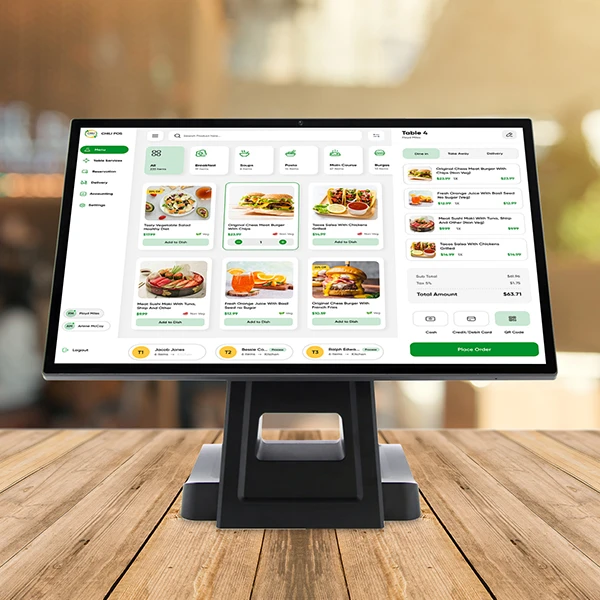
Payment and point-of-sale. Staffed counters work well at 15.6 inches — enough area for order lines and tender buttons, compact enough to sit beside a receipt printer. Dual-screen POS setups typically pair a 15.6-inch staff display with a 10.1-inch customer-facing screen for PIN entry and loyalty prompts. Self-checkout, where the customer drives the whole transaction, moves to 21.5 inches or larger so the item list, promotions, and payment panel coexist without tab-switching.
Meeting and room management. Door-side scheduling panels live at 10.1 inches because the job is one glance: room name, now, next. Inside the room, presentation and collaboration displays jump to 32 inches and up, where the audience sits meters away. The 15.6-inch format appears between them — wall directories in lobbies and larger in-room control panels. Nosso corporate smart office applications page shows these tiers working together in one building.
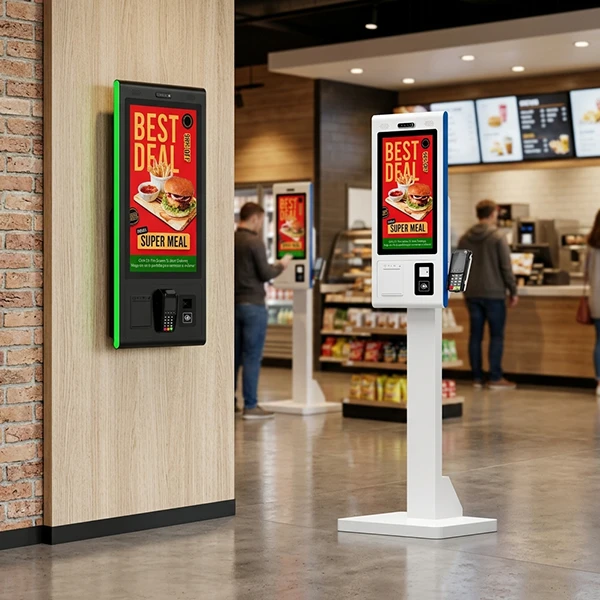
Self-service and ordering kiosks. The kiosk conversation is really about the 21.5-inch core: large enough for a full menu with imagery, small enough to mount in a floor stand that does not dominate the floor. Food-court and mall deployments push to 27 e 32 inches when queues form at a distance and the screen doubles as store signage. Hospital check-ins and lobby wayfinding stay at 21.5 inches for accessibility — wheelchair-accessible mounting heights pair better with moderate diagonals.
Directories, signage and ambient information. Once viewing distance passes roughly three meters, touch becomes occasional and size becomes the message. UM 43 para 65 inch display above a service counter or in a mall corridor carries the room; interactive companions at 21.5 inches handle the lookups. This layered pattern — large ambient screens plus compact interactive points — runs through most retail deployment designs.
Resolution, Viewing Angle and Brightness by Size
Resolution should track size and distance, not spec-sheet vanity. Full HD (1920 × 1080) is the commercial workhorse from 15.6 through 32 inches: at typical stand-up distances, text and interface elements render cleanly, and GPUs in mainstream commercial boards drive it without strain. Smaller 10.1-inch panels commonly run 1280 × 800, which is plenty for status and control interfaces. Acima 43 inches, 4K panels make sense when the screen shows dense content like full menu boards, maps, or multi-zone layouts.
Two panel properties matter more in commercial settings than on a desk. Primeiro, viewing angle: retail and lobby screens are read off-axis, so commercial-grade IPS panels with wide viewing angles keep colors and contrast stable for people approaching from the side. Segundo, brightness and glare: displays near storefront glass or under skylights need higher brightness and anti-glare treatment; standard panels wash out in those positions. Commercial platforms offer high-brightness options (1000+ lêndeas) and AG (antirreflexo) glass precisely for these spots — specify them by environment, not by default.
Poder, Mounting and Installation Weight
Size quietly rewrites the power and installation plan. Compact panels up to about 15.6 inches can run on PoE (Alimentação pela Ethernet) — one network cable delivering power and data, which turns a hundred-panel wall deployment into structured cabling instead of a hundred outlet installs. As screens grow, power draws climb and PoE gives way to conventional AC/DC supply with heavier gauge cabling and, for outdoor or industrial sites, environmental enclosures. Deciding the power strategy per size band before purchase prevents the most expensive class of mid-project rework.
Mounting follows the same physics. A 10.1-inch panel fixes to drywall anchors; a 32-inch display wants a structural mount and a checked VESA pattern; a 65-inch signage wall needs load calculations and often two-person installation crews. Verify the mount pattern and bracket options against your wall or fixture type at ordering time, and remember that floor stands for 27-inch-plus kiosks may need base ballast for tip resistance. O Levinko product catalog lists mounting options per series for exactly this planning step.
Planning a Mixed-Size Fleet
Most real projects end up with several sizes — door panels at 10.1 inches, counters at 15.6, kiosks at 21.5, signage at 32 and up. The mistake to avoid is assembling that fleet from unrelated vendors, which multiplies spare-parts lines, software behavior, and integration work. Fleets bought inside one platform family behave like one product: the same board options, the same interfaces, the same API calls controlling LEDs, readers, and screens across every size. That consistency is what lets a SaaS application support a customer’s whole venue without per-size code branches.
When you plan the fleet, document a size map per location type — which size goes at doors, counters, quiosques, and walls — and hold it across sites so future locations deploy without re-litigating the decision. Touch technology is the other fleet-wide choice; our comparison of telas sensíveis ao toque capacitivas e resistivas covers when each fits. If your project needs custom sizes, bezel treatments, or interface sets beyond the standard bands, review what Serviços OEM e ODM cover before finalizing the size map — some adjustments are light customization on standard hardware, others change the platform decision entirely.
Perguntas frequentes
What is the most common touch screen monitor size for self-service kiosks?
21.5 inches is the established core format for walk-up self-service: it fits a full menu or form with payment panel at a one-meter interaction distance, and it mounts in floor stands that suit retail and restaurant floors. Food courts and malls often scale up to 27 ou 32 inches where the screen doubles as visible signage from a distance, while bedside and corridor check-ins stay at 15.6 inches or smaller.
How does viewing distance affect the screen size I should choose?
As a working rule: arm’s-length interactions (0.5 para 1 meter) suit 10.1 para 15.6 inches; counter and walk-up use (1 para 1.5 meters) suits 15.6 para 21.5 inches; approach distances of 1.5 para 3 meters call for 27 para 32 inches; and ambient viewing beyond 3 meters moves to 43 inches and up. Interface text should be readable at the farthest point a user will stand, so test with your actual content rather than a generic demo screen.
Is a bigger touch screen always better for commercial use?
No. Oversized screens at close range push touch targets beyond comfortable reach, increase cost in mounting, poder, and shipping, and waste display area on padding. Size should match content density and interaction distance, not ambition. A 10.1-inch door panel does its job better than a 21.5-inch one that blocks the door frame — and costs less across a fleet.
Can smaller commercial panels be powered over PoE?
Sim. Compact panels — typically up to 15.6 inches — are available in PoE versions that take power and data over a single network cable. That simplifies wall installs, permite o gerenciamento centralizado de energia e a ciclagem remota de energia a partir do switch, e mantém o cabeamento oculto. Larger displays with higher power draws move to conventional AC/DC supply, so the power strategy should be decided per size band during planning.
Should I buy all my touch screen sizes from one platform family?
For mixed-size fleets, yes — it is the cheaper path over the deployment’s life. One platform family keeps board options, interfaces, acessórios de montagem, and APIs consistent across sizes, so your software works the same on a 10.1-inch door panel and a 32-inch kiosk, and spare parts interchange. Levinko’s touch display series cover 15.6 para 32 inches on shared Android/Windows platforms, with wall-mounted formats extending to 65 inches.