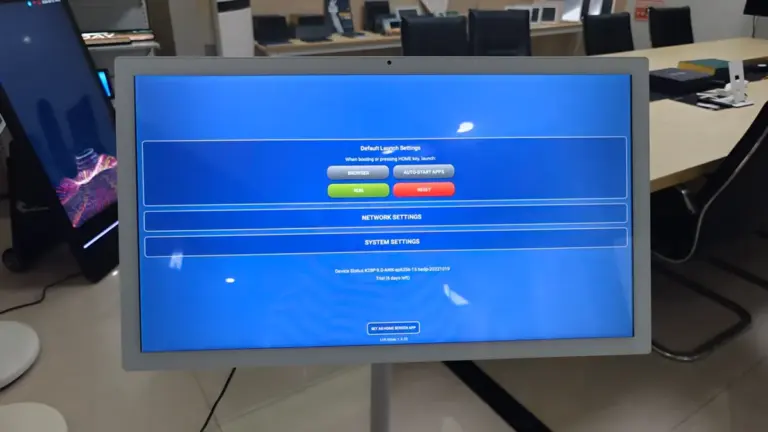
Imagine ordering lunch at a fast-food restaurant without waiting in line. You select your meal, customize it, pay on a touchscreen, and receive an order confirmation in minutes. Similar experiences are common in hotels, hospitals, and retail stores. These are all powered by self-service kiosks. For businesses, these machines help streamline daily operations and improve customer service. But how do they work, what types are available, and are they worth the investment?
This guide covers the different types of self-service kiosks, their common applications, business benefits, potential ROI, pricing factors, and deployment process to help you evaluate the right solution for your business.
Principais conclusões
- A self-service kiosk is an interactive terminal that allows customers or employees to complete tasks independently, such as ordering, checking in, making payments, or accessing information.
- Common types include self-ordering kiosks, quiosques de auto-checkout, terminais de check-in, information kiosks, and ticketing systems.
- Businesses use kiosks to improve operational efficiency, reduce waiting times, increase transaction capacity, and create additional revenue opportunities.
- The total cost depends on screen size, computing hardware, operating system, periféricos, personalização, programas, and installation requirements.
- Successful deployment requires careful planning around hardware selection, software integration, network connectivity, accessibility, and ongoing maintenance.
O que é um quiosque de autoatendimento?
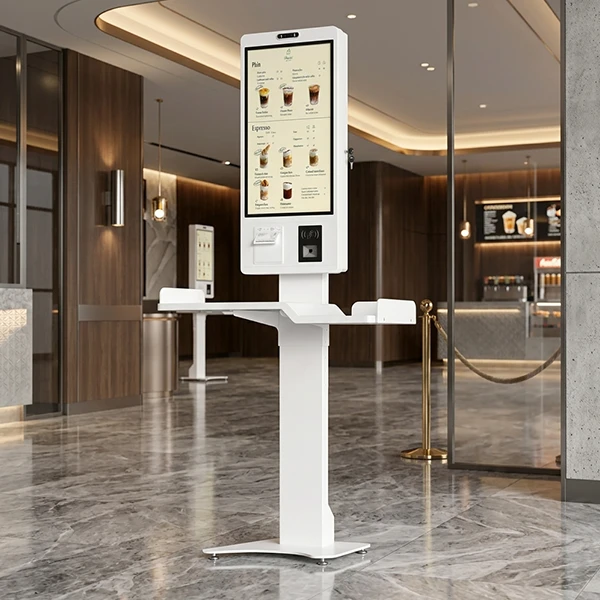
UM self-service kiosk is an interactive, usually unattended terminal that allows users to access information or complete specific transactions without direct assistance from an employee. Most modern self-service kiosks feature a touchscreen interface, an integrated computing system, and optional peripherals such as payment terminals, receipt printers, barcode scanners, and card readers.
Unlike traditional service counters, where employees handle customer requests manually, self-service kiosks guide users through predefined digital workflows. Depending on the application, customers can browse products, customize orders, make payments, register for services, print tickets, or retrieve information directly from the terminal.
Self-service kiosks are commonly installed in locations where businesses handle large numbers of repetitive customer interactions. For example, a quick-service restaurant may use ordering kiosks to let customers browse menus and pay independently, while a hospital may install check-in kiosks to streamline patient registration.
How Is a Self-Service Kiosk Different from a POS Terminal and Digital Signage?
Quiosques de autoatendimento, POS terminals, e sinalização digital may all use commercial displays, but they serve different purposes.
| Feature | Self-Service Kiosk | POS Terminal | Sinalização Digital |
|---|---|---|---|
| Main purpose | Enables users to complete tasks independently | Supports sales transactions, usually with staff assistance | Displays promotional or informational content |
| Primary user | Customer, visitor, or employee | Cashier or sales staff | Viewer or passerby |
| Interaction | User-operated touchscreen and peripherals | Staff-operated interface, sometimes with customer-facing display | Usually passive, though interactive versions exist |
| Common functions | Ordering, check-in, payment, registration, ticketing | Sales processing, payment acceptance, inventory and transaction management | Anúncio, announcements, menus, and directions |
| Typical location | Restaurantes, hospitals, airports, retail stores | Checkout counters and service desks | Storefronts, lobbies, waiting areas, and public spaces |
What Are the Core Components of a Self-Service Kiosk?
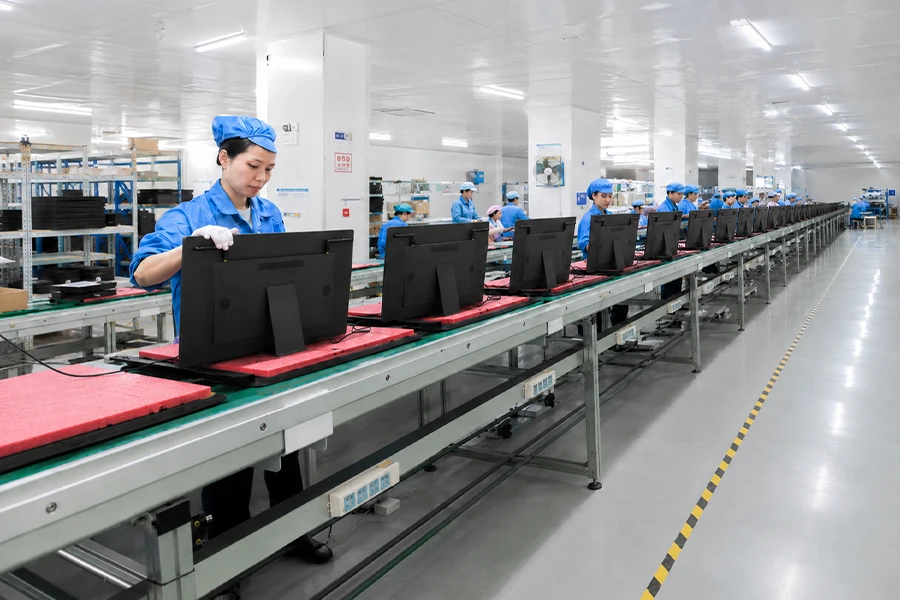
A self-service kiosk is a combination of hardware and software components. Each part contributes to the user experience and the functions the kiosk can perform.
- Touchscreen display: The main interface through which users navigate menus, enter information, select products, and confirm actions. Screen size, brilho, resolution, and touch technology should match the installation environment.
- Computing system: The processing platform that runs the kiosk application and connects the display with other hardware. Common operating systems include Android, Windows, e Linux. The appropriate choice depends on software compatibility and project requirements.
- Enclosure and mounting structure: The physical housing that protects internal components and determines how the kiosk is installed. Common configurations include floor-standing, área de trabalho, and wall-mounted designs.
- Peripheral devices: Additional hardware that supports specific tasks, such as payment terminals, receipt printers, QR code scanners, barcode readers, NFC or RFID readers, and cameras.
- Kiosk software and network connectivity: The software controls the user interface and business workflows, while network connectivity enables communication with payment services, business systems, databases, and remote management platforms.
How Does a Self-Service Kiosk Work?
A self-service kiosk works by connecting user input, application software, and backend systems through an integrated hardware and network setup.
When a customer touches the screen, the kiosk displays available services and guides them through the required steps, such as selecting products, entering information, or choosing an appointment. The built-in computing system processes these inputs and runs the relevant application on Android, Windows, or Linux.
The software then communicates with connected systems to retrieve information, verify details, calculate prices, or process requests. Depending on the kiosk’s function, users can complete payments, confirm orders, print receipts or tickets, or finish registration directly at the terminal.
After the interaction, transaction records and other relevant data can be synchronized with backend platforms such as POS, inventory, payment, or appointment management systems. With network connectivity and compatible management software, businesses can also monitor kiosk status, update applications, and manage devices remotely.
What Are the Different Types of Self-Service Kiosks?
Self-service kiosks are designed around different business workflows. The right type depends on what users need to accomplish, where the kiosk will be installed, and which systems it must connect to.
Self-Ordering and Payment Kiosks
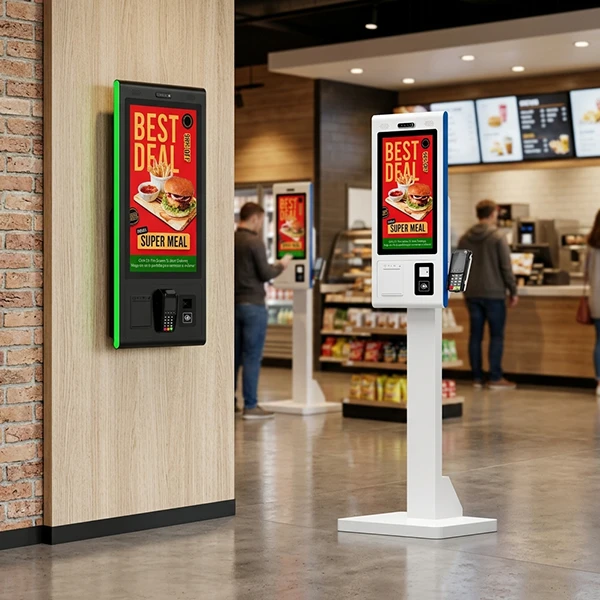
Self-ordering kiosks are a common application in restaurants and food-service businesses.
They allow customers to browse menus, select products, customize orders, and make payments without relying on a cashier to enter each item.
They often include a large touchscreen, an order management application, and optional payment terminals or receipt printers. Some configurations also support QR code scanning or loyalty program integration.
Restaurants use these kiosks to manage ordering during busy periods and give customers more control over how they customize their meals.
Self-Checkout Kiosks
Self-checkout kiosks allow shoppers to scan products, review their purchases, and complete payment independently.
They are commonly used in supermarkets, convenience stores, and other retail environments. Depending on the system, a self-checkout station may include a barcode scanner, payment terminal, receipt printer, and bagging area.
The software needs to communicate with the retailer’s POS and inventory systems so that product prices and transaction records remain consistent.
Check-In and Registration Kiosks
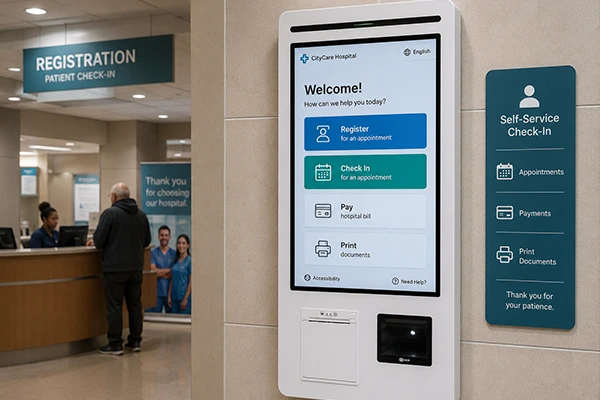
Check-in kiosks help visitors, patients, guests, and passengers complete registration procedures without waiting for staff to enter their information manually.
Common applications include hotel check-in, hospital registration, airport passenger services, and visitor management in office buildings.
Depending on the workflow, these kiosks may support ID scanning, QR code reading, document printing, appointment lookup, or visitor badge printing.
Information and Wayfinding Kiosks
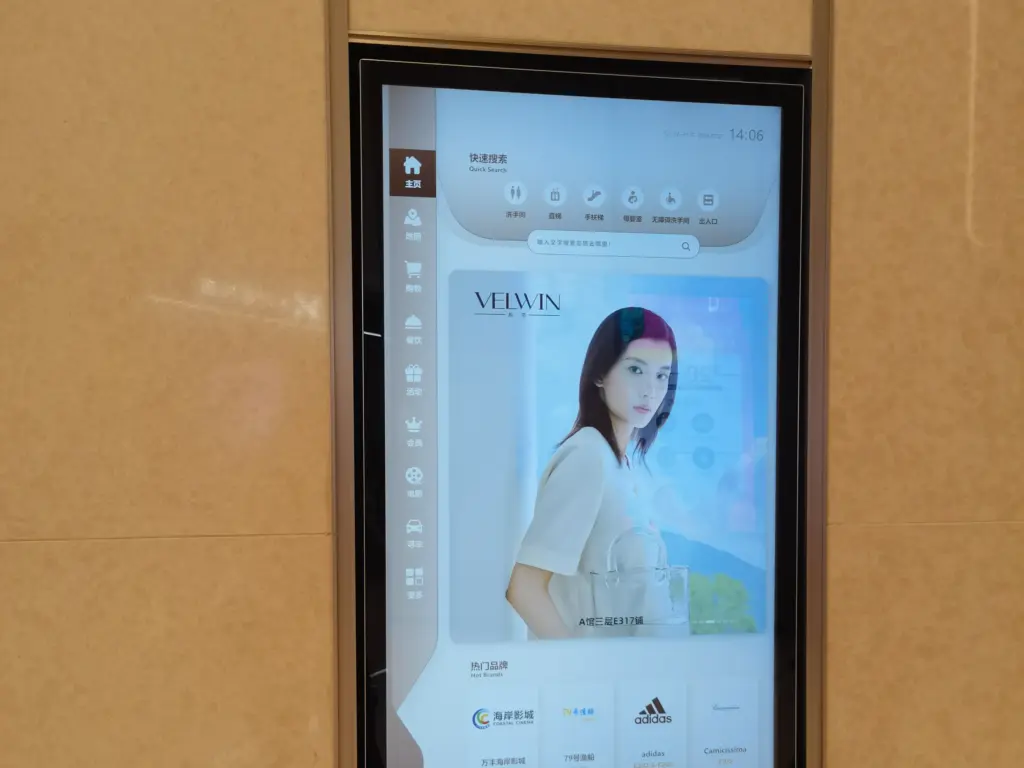
Information kiosks provide users with access to directories, maps, service details, and other location-based information.
They are often installed in shopping malls, hospitals, campuses, hotéis, exhibition centers, and public buildings. Users can search for a destination, browse available services, or follow on-screen directions.
These kiosks generally prioritize an easy-to-use interface and clear display rather than transaction-related peripherals.
Ticketing and Queue Management Kiosks
Ticketing kiosks allow users to purchase or collect tickets, while queue management kiosks help visitors obtain queue numbers and understand their place in a service process.
They are used in cinemas, transportation hubs, government service centers, banks, and entertainment venues.
Depending on the application, a kiosk may include a payment terminal, ticket or receipt printer, QR code scanner, and connection to a ticketing or queue management platform.
Employee and Visitor Self-Service Kiosks
Businesses also use self-service kiosks for internal operations and workplace administration.
Employee-facing systems may support attendance recording, staff information lookup, internal requests, or access to company services. Visitor kiosks can collect guest details, notify hosts, and print visitor badges.
These applications often require integration with access control, visitor management, or human resource systems. The hardware and software should be selected according to the organization’s security and data management requirements.
Where Are Self-Service Kiosks Used? 8 Common Industry Applications
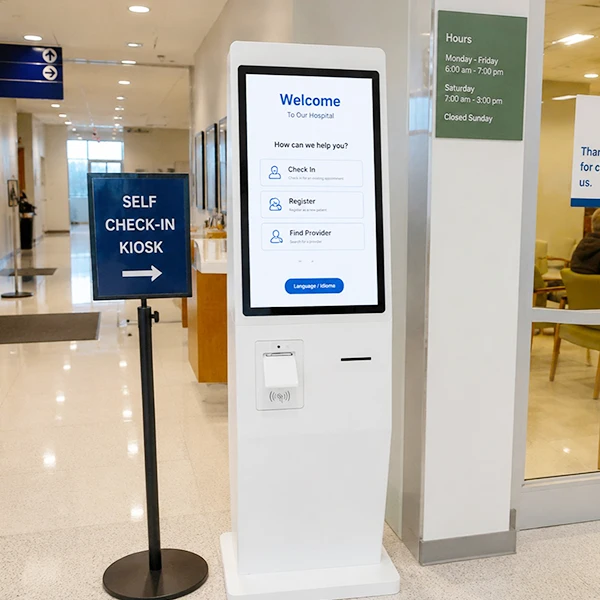
Self-service kiosks are used across industries where businesses need to handle frequent customer interactions, routine transactions, or information requests. Their specific functions vary according to the operating environment.
8 common applications include:
- Restaurants and quick-service food businesses: Customers use self-ordering kiosks to browse menus, customize meals, pay, and receive order confirmations.
- Retail stores and supermarkets: Self-checkout systems help shoppers scan products and complete purchases, while information kiosks can support product searches and store navigation.
- Hotels and hospitality: Guests can use kiosks for check-in, check-out, reservation lookup, and other front-desk services.
- Hospitals and healthcare facilities: Patient-facing kiosks support appointment check-in, registration, queue management, and access to basic service information.
- Airports and transportation hubs: Kiosks can assist with ticketing, passenger check-in, boarding pass printing, and travel information.
- Banks and financial service locations: Self-service terminals can support queue management, customer information access, and selected banking-related services, depending on the system.
- Corporate offices and business buildings: Visitor management kiosks help register guests, notify employees, and manage front-desk procedures.
- Entertainment venues and event spaces: Ticketing and information kiosks allow visitors to purchase or collect tickets, check event details, and find venue information.
The best kiosk configuration depends on the tasks users need to complete. A restaurant ordering station, por exemplo, has different peripheral and software requirements from a hospital registration terminal. Businesses should define the intended workflow before choosing the hardware.
How Can a Self-Service Kiosk Improve Business ROI?
A self-service kiosk can generate business value through several channels, including labor efficiency, transaction capacity, order value, and reduced processing errors. No entanto, the return on investment depends on the number of transactions handled, the costs of deployment, and how effectively the kiosk fits into existing operations.
Businesses should evaluate both the direct financial impact and the operational improvements.
1. Labor savings
If kiosks handle routine transactions, employees may spend less time on repetitive tasks. This can reduce the need for additional counter staffing during busy periods or allow existing employees to focus on more complex customer requests.
2. Higher average order value
In ordering environments, relevant recommendations and add-on options can encourage customers to purchase additional items. The financial impact can be estimated by comparing average order values before and after deployment.
3. Increased transaction capacity
Multiple kiosks can provide additional service points without requiring a separate employee to operate each terminal. This may help businesses process more transactions during peak periods, provided that kitchen capacity, payment processing, and other backend operations can support the additional demand.
4. Fewer manual errors and less waste
Structured digital workflows can reduce mistakes caused by manual order entry or incomplete information. In restaurants, por exemplo, more accurate orders may help reduce remakes and associated food waste.
5. Better allocation of staff resources
When routine tasks are handled through kiosks, employees can focus on customer assistance, problem resolution, product preparation, or other activities that require human involvement.
A Practical Way to Calculate Kiosk ROI
A basic ROI calculation compares the financial benefits generated by the kiosk with its total cost over a defined period.
ROI (%) = [(Total Benefits − Total Costs) ÷ Total Costs] × 100%
For a more useful assessment, businesses should estimate the following:
| ROI Factor | What to Measure |
|---|---|
| Labor efficiency | Changes in staffing costs or the amount of staff time spent on routine transactions |
| Average order value | Changes in average spending per transaction |
| Transaction capacity | Additional transactions completed during the same operating period |
| Error reduction | Changes in refunds, order remakes, or processing mistakes |
| Operating costs | Hardware, programas, installation, maintenance, and payment-related expenses |
How Much Does a Self-Service Kiosk Cost?
There is no single price for every self-service kiosk. The total cost depends on the hardware configuration, screen size, operating system, periféricos, enclosure design, programas, and installation requirements.
A basic information kiosk may require fewer components than a payment-enabled ordering terminal. A customized kiosk designed for a specific business workflow may also involve additional engineering and integration costs.
The main cost factors include:
- Touchscreen display: Screen size, resolution, brilho, tecnologia de toque, and display specifications influence the hardware cost. Larger displays and application-specific requirements may increase the budget.
- Computing hardware and operating system: The processor, memória, storage, and selected operating system affect the computing platform’s cost. Hardware should provide sufficient performance for the intended application.
- Peripheral devices: Payment terminals, receipt printers, barcode scanners, QR code readers, Módulos NFC/RFID, cameras, and other accessories add to the overall cost. Only include peripherals that the workflow actually requires.
- Enclosure and customization: Floor-standing, área de trabalho, and wall-mounted designs have different structural requirements. Custom dimensions, materiais, finishes, métodos de montagem, and branding may also affect the price.
- Software and system integration: The kiosk application, licensing, backend connections, payment integration, and remote management functions may involve separate development or service fees.
- Installation and ongoing expenses: Shipping, on-site installation, network configuration, maintenance, replacement parts, and technical support should be included in the long-term budget.
How to Set Up a Self-Service Kiosk for Your Business
Deploying a self-service kiosk involves more than purchasing a touchscreen terminal. The hardware, programas, installation environment, and business workflow must work together.
The following steps provide a practical starting point.
Etapa 1: Define your business needs and user workflow.
Identify the tasks the kiosk should support. Determine whether users will place orders, make payments, check in, print tickets, access information, or complete another process. Map the steps users will follow from the beginning to the end of each interaction.
Etapa 2: Choose the kiosk type and hardware configuration.
Select a kiosk format based on the installation location and intended use. Consider whether a de chão, área de trabalho, or wall-mounted model is appropriate. Then determine the required display size, computing performance, and peripheral devices.
Etapa 3: Select the operating system and kiosk software.
Choose an operating system that supports the application and business software. Android, Windows, and Linux may all be suitable in different situations. Confirm software compatibility, hardware drivers, security requirements, and update arrangements before finalizing the platform.
Etapa 4: Plan software integration.
Identify which existing systems the kiosk needs to communicate with, such as POS software, payment services, inventory databases, appointment platforms, ticketing systems, or visitor management applications. Confirm API availability and integration responsibilities with the relevant software providers.
Etapa 5: Prepare the installation site and network.
Check the available floor or counter space, power supply, network coverage, cable routing, iluminação, and user accessibility. For public installations, also consider the kiosk’s stability, viewing angle, and suitability for different users.
Etapa 6: Test the kiosk and prepare for launch.
Test the complete workflow before opening the kiosk to the public. Check touchscreen responsiveness, software performance, payment processing, peripheral connections, network stability, and backend synchronization. Train relevant employees so they can assist users and handle basic troubleshooting.
Etapa 7: Monitor performance and maintain the system.
After deployment, monitor usage, transaction performance, software errors, and hardware condition. Schedule software updates and routine inspections, and establish a process for handling technical issues. For multi-location deployments, centralized monitoring may help simplify ongoing management.
How to Choose the Right Self-Service Kiosk Manufacturer?
The manufacturer you choose can influence the kiosk’s hardware reliability, customization options, integration process, and long-term maintenance. Comparing suppliers based only on unit price may overlook important differences in product quality and technical support.
Consider the following factors when evaluating a self-service kiosk manufacturer.
1. Hardware quality and reliability
Check the display specifications, computing platform, enclosure construction, and quality of the selected components. Ask about product testing, expected operating conditions, warranty coverage, and available replacement parts.
For kiosks installed in public or high-traffic environments, durability and ease of maintenance are particularly important.
2. OEM and ODM customization capabilities
Different businesses have different installation spaces, branding requirements, and workflows. A manufacturer with OEM and ODM capabilities may be able to customize the enclosure, mounting structure, display configuration, and peripheral layout.
If your project requires a specialized design, ask whether the supplier can support product development and engineering adjustments rather than only offering standard models.
3. Software compatibility and integration support
The kiosk hardware must work with the software selected for the project. Confirm that the manufacturer can provide a suitable operating system and hardware configuration, and ask about available technical documentation, drivers, APIs, or SDKs where relevant.
Also clarify which party is responsible for application development, payment integration, and connections to third-party business systems.
4. Technical support and after-sales service
A kiosk may remain in operation for years, so support after delivery matters. Review the manufacturer’s warranty terms, response process, troubleshooting resources, and availability of replacement components.
For large deployments, discuss how software updates, hardware repairs, and technical issues will be handled across different locations.
A reliable manufacturer should be able to explain its product capabilities clearly, identify technical limitations, and help match the hardware configuration to the actual project requirements.
Build Your Self-Service Kiosk Solution with Levinko
Choosing a self-service kiosk is a decision that connects hardware, programas, and the daily operations of your business. The right solution should support the tasks users need to complete, fit the installation environment, and work reliably with your existing systems.
Levinko provides commercial touchscreen and self-service kiosk solutions for businesses with different application requirements. Depending on the project, kiosk configurations can be developed around floor-standing, área de trabalho, or wall-mounted designs, with hardware and system options selected according to the intended use.
For businesses looking for a customized solution, it is important to discuss the complete project requirements rather than selecting a terminal based on screen size alone. Display configuration, computing platform, peripheral compatibility, enclosure design, and software integration all need to be considered together.
Whether you are planning a self-ordering station, an information kiosk, a registration terminal, or another self-service application, Levinko can work with you to evaluate the hardware requirements and discuss a suitable configuration.
Contact Levinko to discuss your self-service kiosk project and explore a solution that matches your application, installation environment, and business requirements.
Perguntas frequentes
What is a self-service kiosk in simple terms?
It is a standing touchscreen terminal that lets customers complete a task by themselves — order food, check in, print a ticket, scan and pay — without staff operating the device. Internally it combines a commercial touch display, a computing platform (Android, Windows, or Linux), an enclosure, and transaction peripherals like printers, scanners, and payment modules, running the business’s kiosk application locked to the screen.
What are the main types of self-service kiosks?
Four types cover most deployments: floor-standing kiosks (21.5–32 inch screens on a vertical structure — restaurant ordering, retail checkout, lobby check-in), desktop or countertop kiosks (15.6–23.8 inches for service counters), wall-mounted kiosks (corridors and entryways where floor space is off-limits), e quiosques ao ar livre (weatherproofed, high-brightness builds for exposed sites). The type follows the location, not the industry.
Should a self-service kiosk run Android or Windows?
Follow your software. Android suits app-based and web-based kiosk applications, with native kiosk-mode lockdown and cost-efficient hardware — it is the default for ordering, check-in, and information kiosks. Windows (from fanless boards to Core i-series) is the answer for Windows-only POS suites or web POS systems that must drive receipt printers, a known Android limitation in restaurant environments. Linux fits engineering teams building their own stack. Choose a platform family that offers all three so the software decides.
What components can be added to a kiosk?
The common additions are transaction peripherals: receipt and ticket printers, QR and barcode scanners, mounts and wiring for payment terminals, NFC/RFID readers for membership or access cards, and cameras where a solution requires them. Connectivity options include dual-band Wi-Fi, Ethernet, and 4G/5G LTE for sites without stable cabling. On industrial-grade platforms, serial interfaces (RS232/RS485) and GPIO allow custom device integration for specialized workflows.
How do kiosks stay running without staff watching them?
Through three software layers: kiosk mode locks the device to your application from boot with no public exit path; a hardware watchdog monitors the system and force-restarts it automatically if the application or OS hangs — on Levinko platforms within roughly 50 segundos; and remote management with OTA update paths lets your team monitor the fleet and push fixes without visiting each site. Commercial hardware completes the picture with 24/7-rated components and mandatory factory burn-in testing before shipment.